> ## Documentation Index
> Fetch the complete documentation index at: https://developer.me-cash.com/llms.txt
> Use this file to discover all available pages before exploring further.
# IP Whitelisting
> Allow only trusted servers to access the meCash API.
To use the meCash API, you must first add at least one trusted IP address. Requests coming from non-whitelisted sources are rejected automatically, keeping your integration secure.
## What happens if an IP isn’t whitelisted?
```json "403 Forbidden" theme={null}
{
"message": "Forbidden: Your IP address is not whitelisted to access this resource."
}
```
Your API keys remain inactive until a valid IP is on the list, so complete this step before attempting live calls.
## Add an IP address
 Log in to the meCash dashboard and select **Developers** from the sidebar.
In the Developers workspace, open **IP Whitelisting** to view existing addresses and available actions.
Log in to the meCash dashboard and select **Developers** from the sidebar.
In the Developers workspace, open **IP Whitelisting** to view existing addresses and available actions.
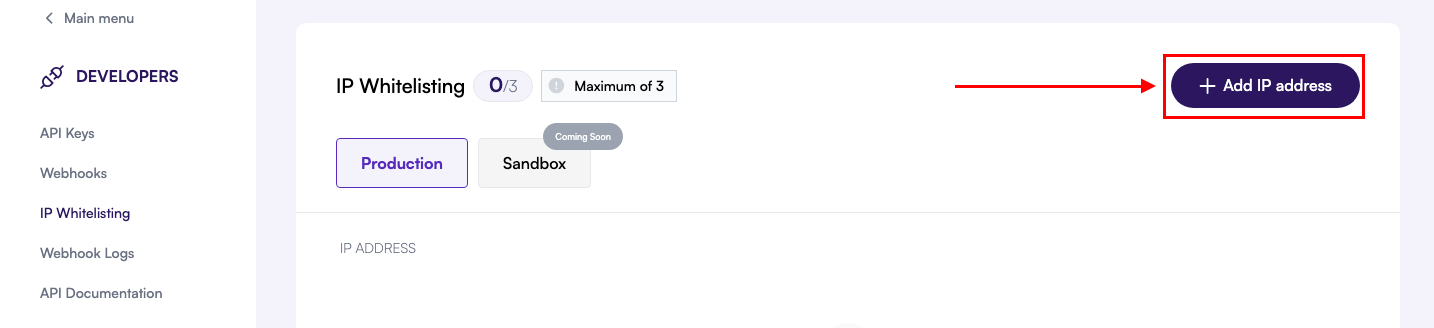 Click **Add IP Address** to launch the entry form.
 Provide the static IP of your server, then click **Confirm**. The address appears in the list with its current status.
Prefer static IPs. Update the whitelist immediately if your infrastructure’s public IP changes.
Provide the static IP of your server, then click **Confirm**. The address appears in the list with its current status.
Prefer static IPs. Update the whitelist immediately if your infrastructure’s public IP changes.