Make global payouts, wallets, and collections faster.
Build real-time money movement into your product with clear guides, OpenAPI references, and prebuilt examples. Move from sandbox to production-ready integrations in hours, not weeks.
REST
API with predictable responses
Sandbox
Test every flow before go-live
Webhooks
Real-time payout status events
Multi-currency
Wallets, quotes and payouts
Navigate the Docs
Launch a Use Case
Ship in hours, not weeks.
A clean REST API with predictable responses, code examples in cURL, JavaScript, and Python, and a sandbox you can hit immediately.
Instant Sandbox Access
Test every endpoint with zero risk before going live.
Webhook-First Architecture
Real-time notifications for every state change.
Interactive Playground
Try requests directly from the docs — no Postman needed.
A new payout starts as PENDING. Track it with webhooks. See the full USD payout example.
 1. Visit [meCash Business](https://business.me-cash.com).
2. Select **Sign Up**, complete the registration form, and set a strong password.
3. Verify your email address to unlock the dashboard.
4. Assign teammates under **Team Management** so they can collaborate.
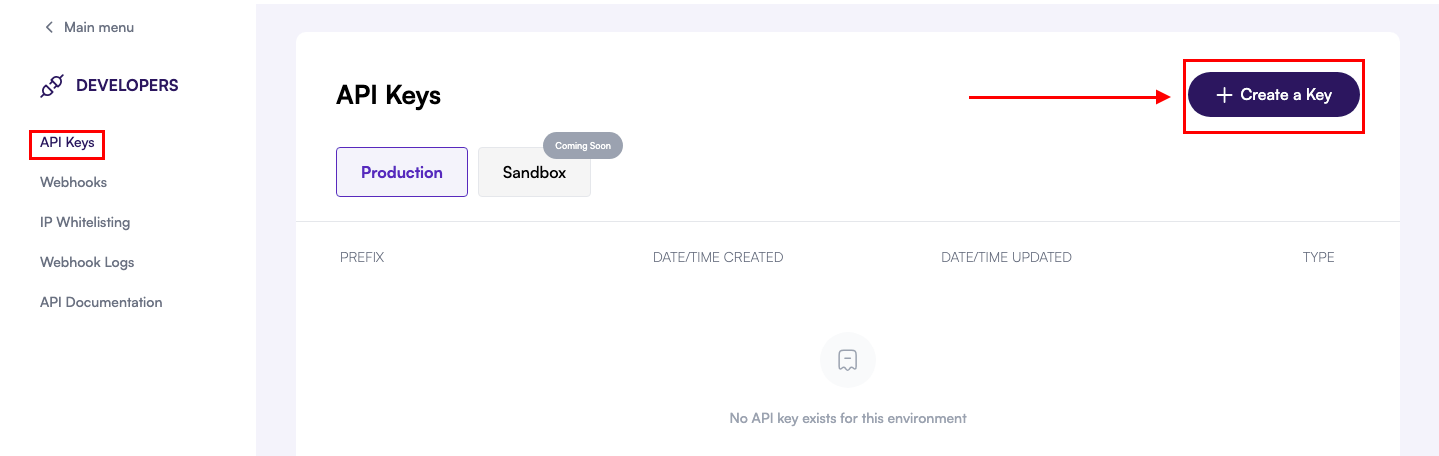 1. Log in to the meCash Business dashboard.
2. Open **Developers → API Keys**.
3. Confirm the **Sandbox** environment is selected, then click **Create a Key**.
4. Label the key to match your environment and copy it to your secrets manager.
 1. Go to **Developer** section in your dashboard.
2. Navigate to **IP Whitelisting**.
3. Add your outbound server IPs or CIDR ranges.
4. Save the configuration.


 From the sidebar of your meCash dashboard, select **Developers** to manage API access.
 In the **API Keys** tab, click **Create a Key**. Choose the environment (Sandbox or Production) that matches your workflow.
 Copy the key immediately and store it somewhere safe—this is the only time it will be fully visible.
 Locate the key you want to revoke and click **Delete API Key**.
 Confirm the action. You will receive a one-time password (OTP) via your registered email.
 Input the OTP and click **Continue**. The key is permanently removed once verification succeeds.


