> ## Documentation Index
> Fetch the complete documentation index at: https://developer.me-cash.com/llms.txt
> Use this file to discover all available pages before exploring further.
# Payment Links
Payment Links are a simple and effective way to accept payments from customers without needing a dedicated website or complex integration. They allow you to generate a unique URL that you can share with customers via email, social media, or messaging apps.
## Payment Links Use Cases
This feature is ideal for:
* Collecting one-time payments.
* Selling simple products or services.
* Freelancers and businesses sending quick invoices.
## Creating a Payment Link
Follow these steps to generate a new payment link for your customers.
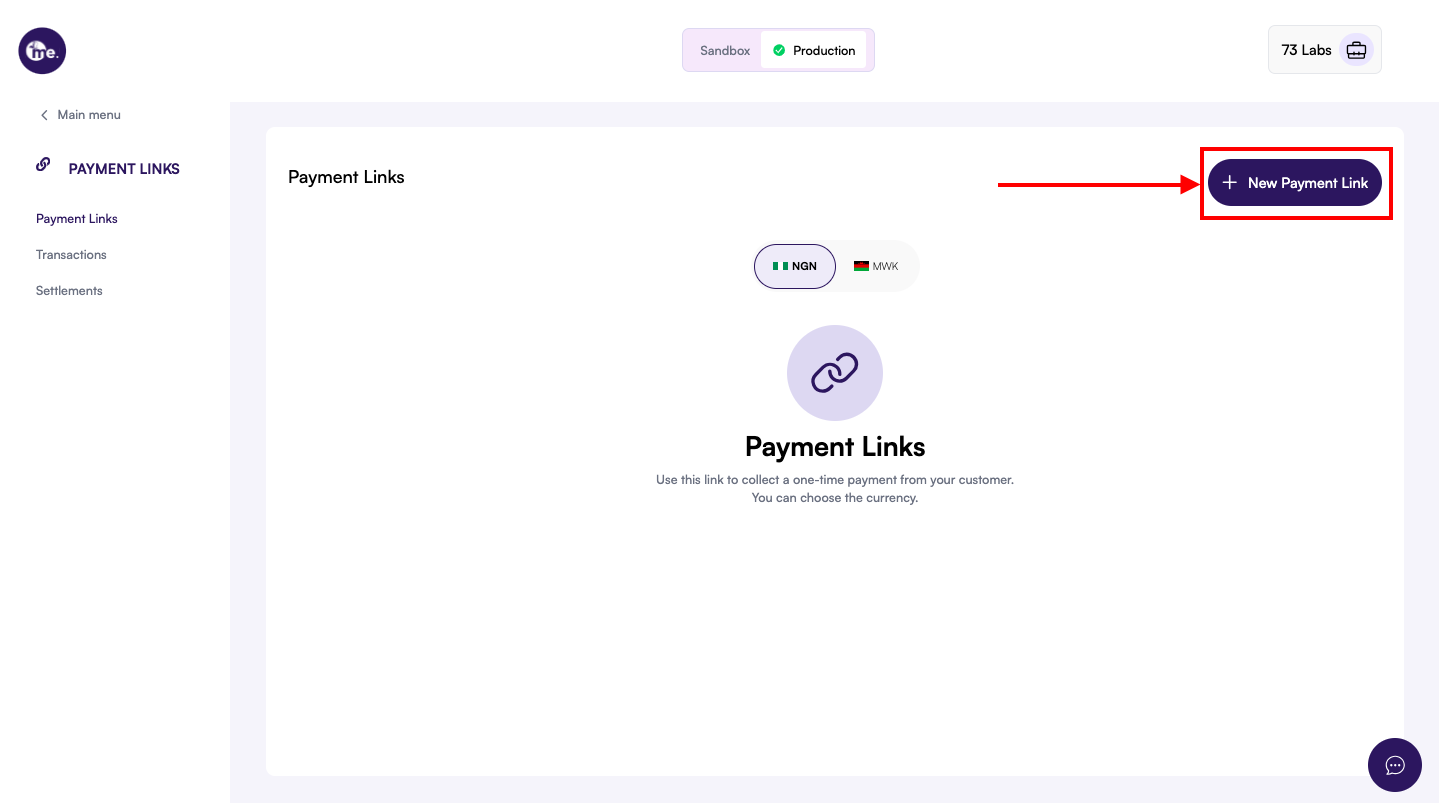 From your main dashboard, locate the sidebar menu and click on **Payment Links**.
On the Payment Links page, click the + New Payment Link button located in the top right corner.
From your main dashboard, locate the sidebar menu and click on **Payment Links**.
On the Payment Links page, click the + New Payment Link button located in the top right corner.
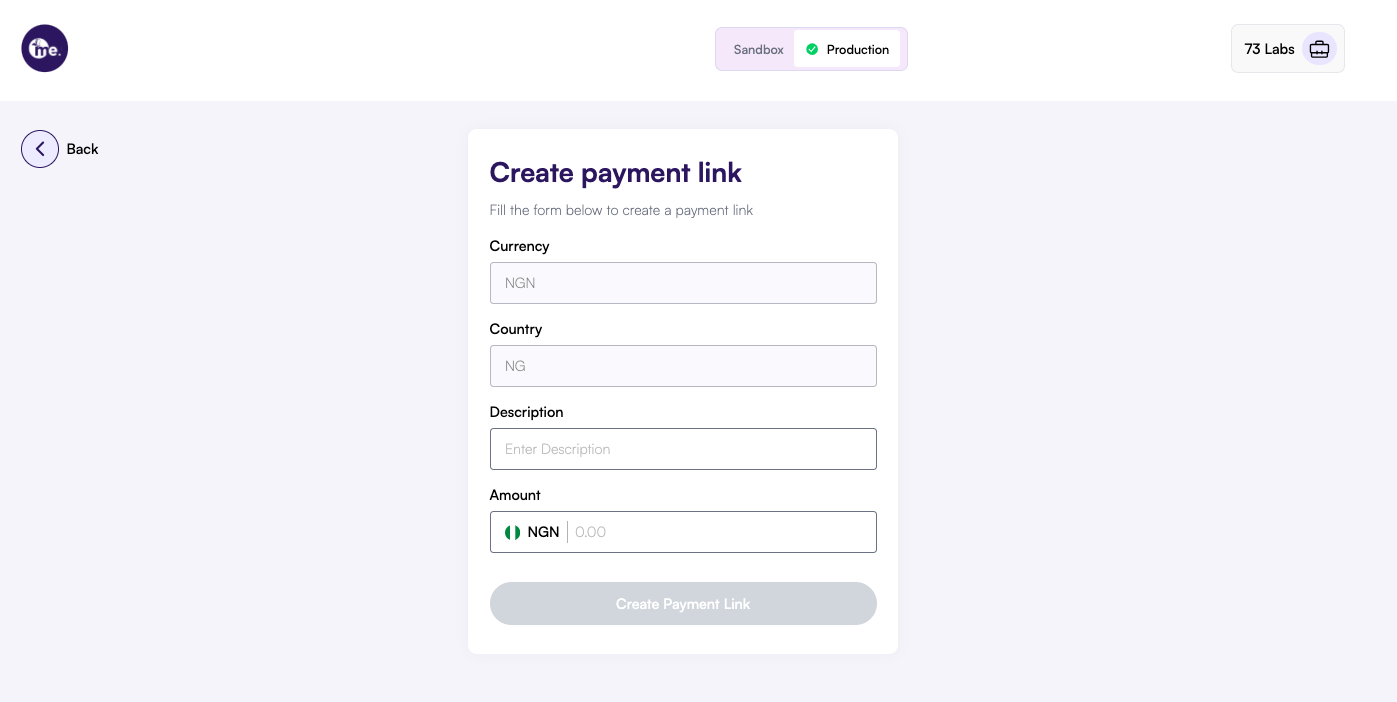 A form will appear requiring the details of the transaction. You will need to provide:
* **Currency:** Select the currency (e.g., `NGN`).
* **Country:** Select the country (e.g., `NG`).
* **Description:** A brief description (e.g., "Ejiro Fintech Course").
* **Amount:** Enter the specific amount to be charged.
Once filled, click the **Create Payment Link** button.
A form will appear requiring the details of the transaction. You will need to provide:
* **Currency:** Select the currency (e.g., `NGN`).
* **Country:** Select the country (e.g., `NG`).
* **Description:** A brief description (e.g., "Ejiro Fintech Course").
* **Amount:** Enter the specific amount to be charged.
Once filled, click the **Create Payment Link** button.
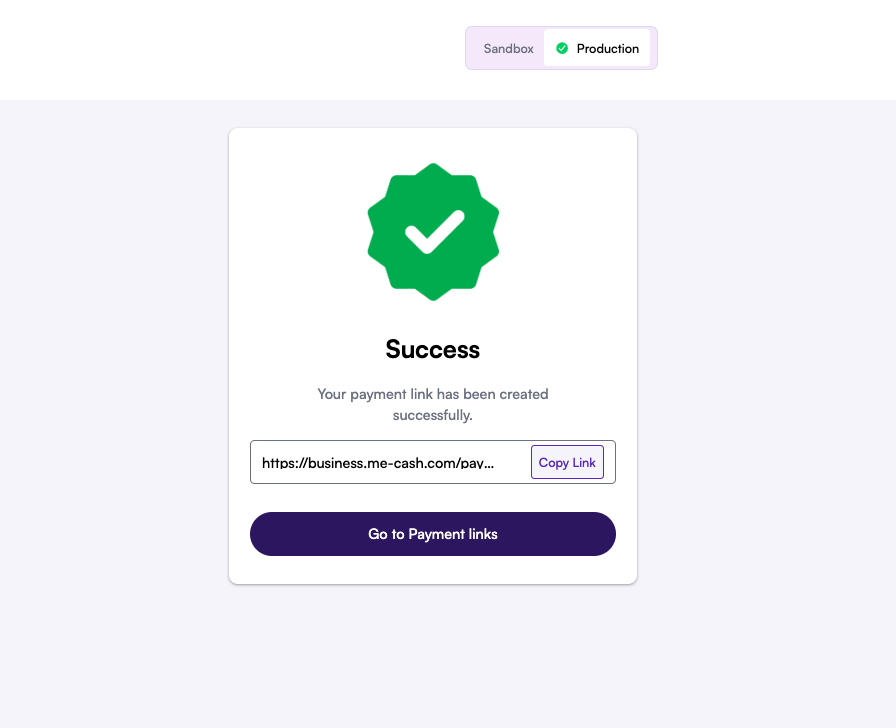 Your link will be generated instantly. You can copy the link immediately using the **Copy Link** button or navigate back to your list.
Managing and Deactivating Links
If a payment link is no longer needed (e.g., a limited-time offer has ended), you can deactivate it.
Your link will be generated instantly. You can copy the link immediately using the **Copy Link** button or navigate back to your list.
Managing and Deactivating Links
If a payment link is no longer needed (e.g., a limited-time offer has ended), you can deactivate it.
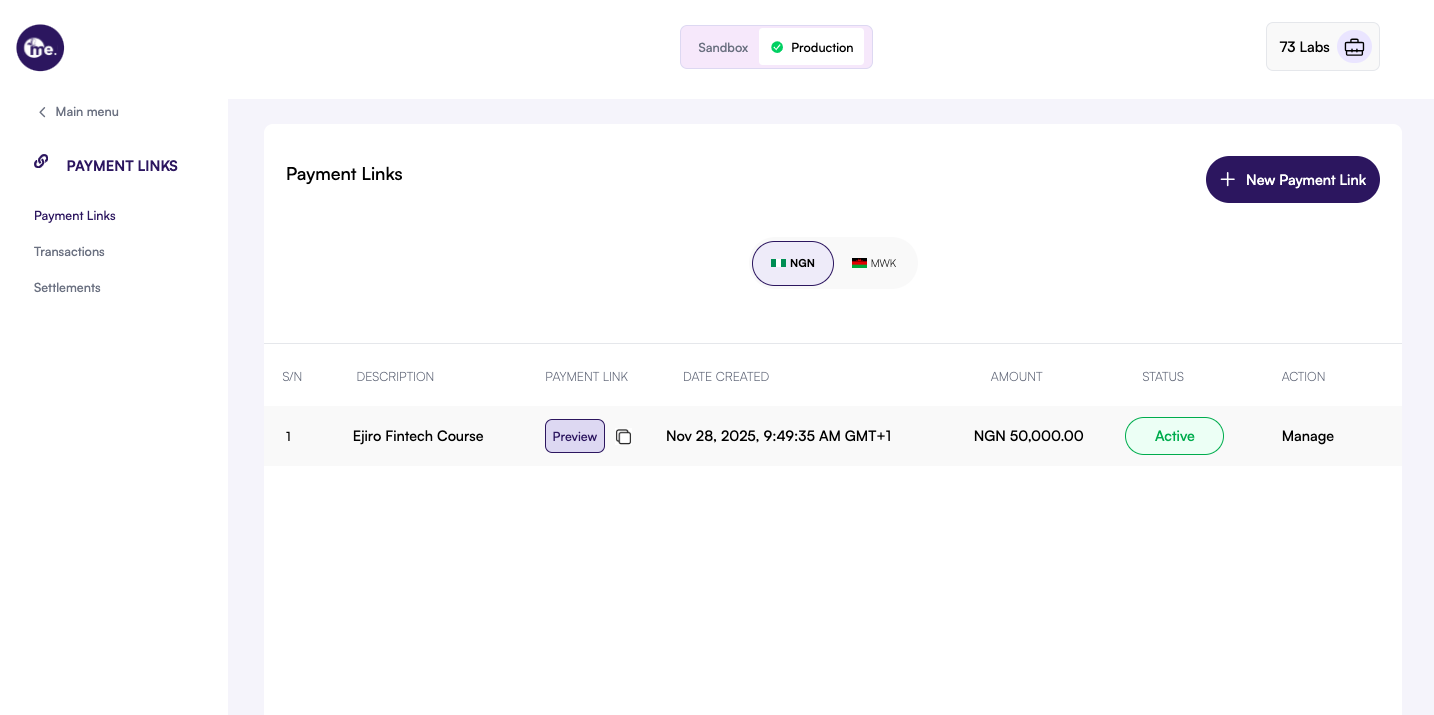 Navigate to the **Payment Links** page. Find the specific link in your list and click the **Manage** button on the right side.
In the Payment Link Information view, look for the Deactivate Link button (usually located near the top right) and click it.
Navigate to the **Payment Links** page. Find the specific link in your list and click the **Manage** button on the right side.
In the Payment Link Information view, look for the Deactivate Link button (usually located near the top right) and click it.
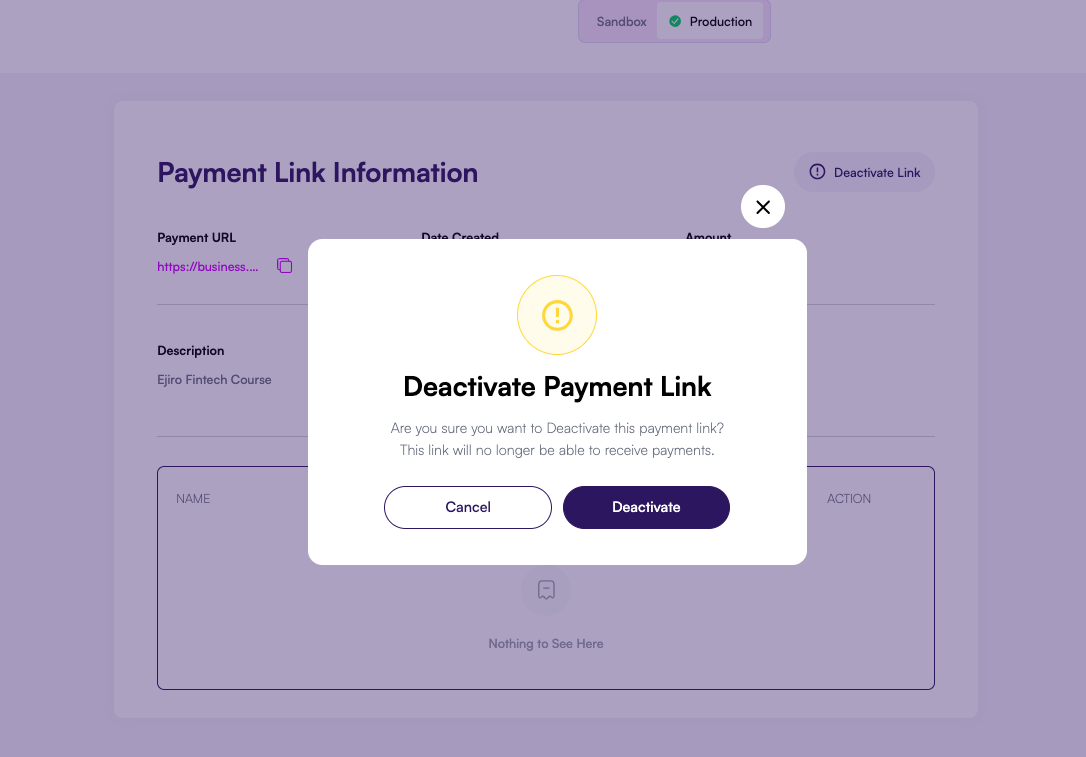 A warning modal will appear asking you to confirm the action. Click **Deactivate** to proceed.
Once deactivated, the link status in your dashboard will change to Inactive. The link will no longer be able to receive payments.
You can monitor the status of your links at any time in the dashboard. The status column indicates if a link is Active or Inactive.
A warning modal will appear asking you to confirm the action. Click **Deactivate** to proceed.
Once deactivated, the link status in your dashboard will change to Inactive. The link will no longer be able to receive payments.
You can monitor the status of your links at any time in the dashboard. The status column indicates if a link is Active or Inactive.