> ## Documentation Index
> Fetch the complete documentation index at: https://developer.me-cash.com/llms.txt
> Use this file to discover all available pages before exploring further.
# Quickstart Guide
> Get started with meCash API in minutes
## Before you begin
Make sure you have:
* A registered [meCash Business](https://business.me-cash.com) account for your company.
* Legal and compliance documents handy (KYB form, director IDs, proof of address, BVN).
* A dedicated IP address or CIDR block for outbound traffic.
* A publicly reachable HTTPS endpoint that can receive webhook events.
## Get started with meCash API in 5 steps
Follow this quickstart guide to integrate meCash API into your application.
### Step 1: Create Your Account
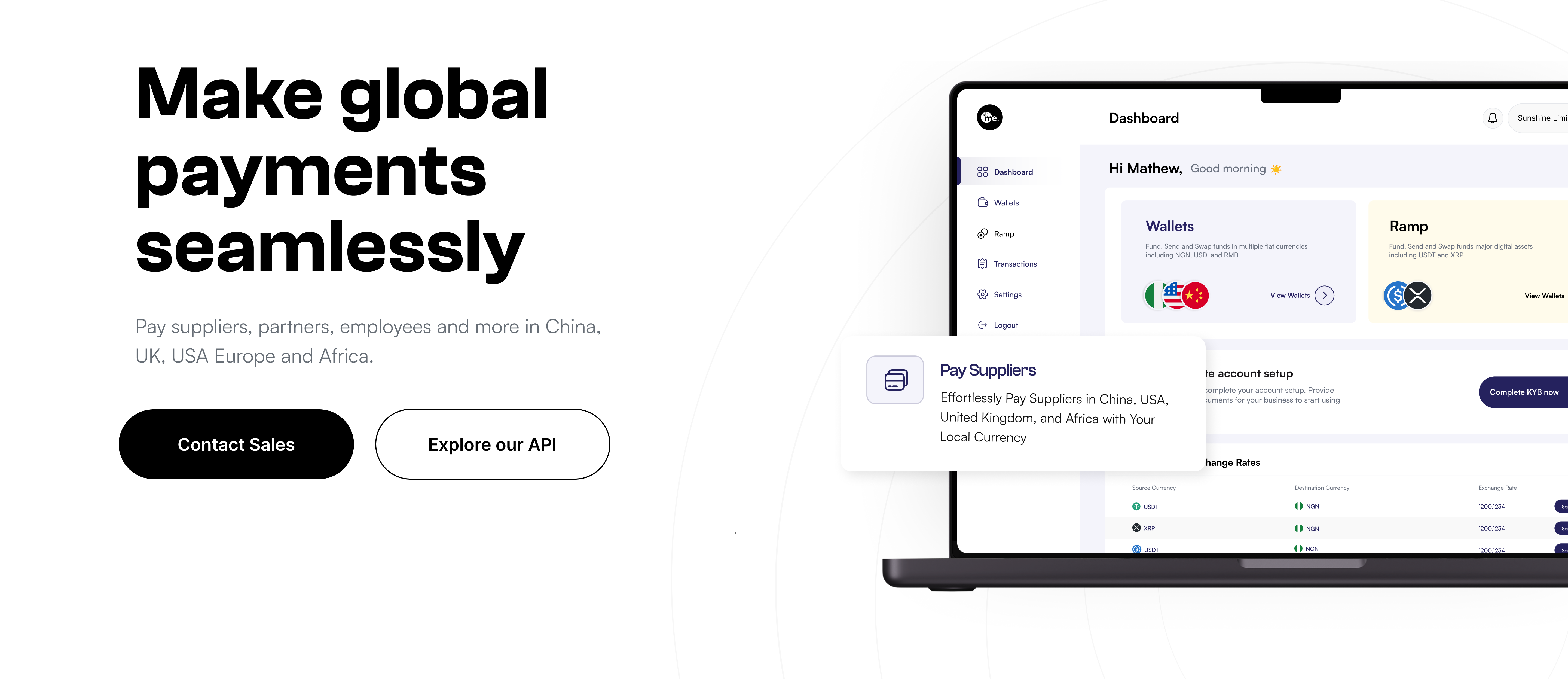 1. Visit [meCash Business](https://business.me-cash.com).
2. Select **Sign Up**, complete the registration form, and set a strong password.
3. Verify your email address to unlock the dashboard.
4. Assign teammates under **Team Management** so they can collaborate.
* Fill out the KYB form in full—partial submissions delay approvals.
* Upload clear copies of:
* Business registration certificate
* Valid government-issued ID for the business director
* Recent proof of address (utility bill or bank statement)
The first and last name on the form must match the BVN you submit.
* Provide your BVN for account verification to unlock an NGN account.
* Once approved, the account details appear under **Accounts → NGN**.
The BVN name must exactly match the first and last name submitted in KYB.
### Step 2: Generate Your API Keys
1. Visit [meCash Business](https://business.me-cash.com).
2. Select **Sign Up**, complete the registration form, and set a strong password.
3. Verify your email address to unlock the dashboard.
4. Assign teammates under **Team Management** so they can collaborate.
* Fill out the KYB form in full—partial submissions delay approvals.
* Upload clear copies of:
* Business registration certificate
* Valid government-issued ID for the business director
* Recent proof of address (utility bill or bank statement)
The first and last name on the form must match the BVN you submit.
* Provide your BVN for account verification to unlock an NGN account.
* Once approved, the account details appear under **Accounts → NGN**.
The BVN name must exactly match the first and last name submitted in KYB.
### Step 2: Generate Your API Keys
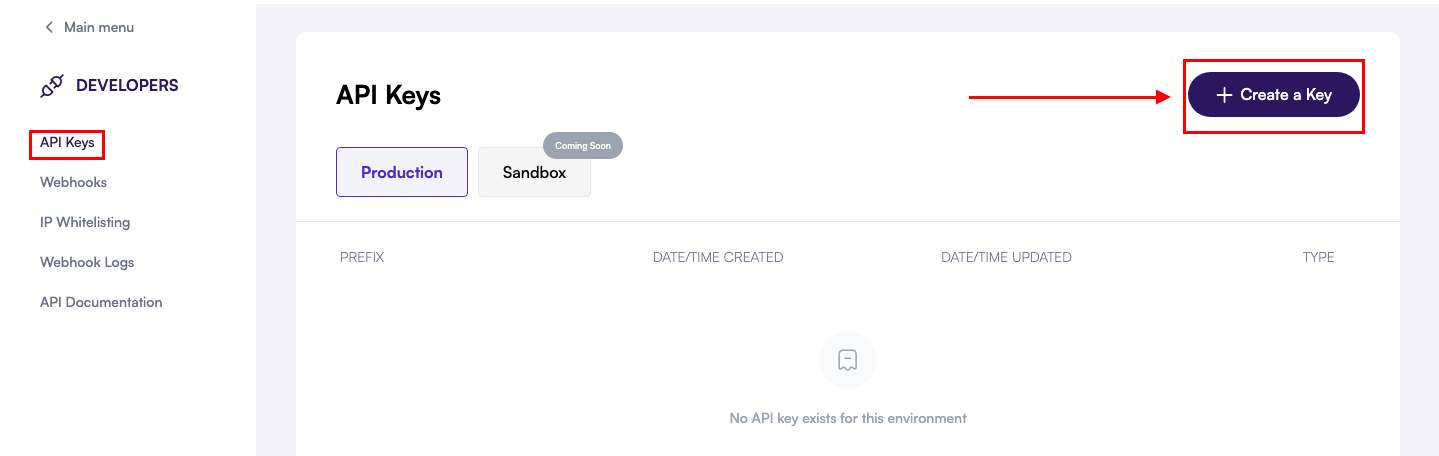 1. Log in to the meCash Business dashboard.
2. Open **Developers → API Keys**.
3. Confirm the **Sandbox** environment is selected, then click **Create a Key**.
4. Label the key to match your environment and copy it to your secrets manager.
Never expose API keys in client-side code or public repos.
From the dashboard you can toggle between the sandbox and production environments.
The environment URLs are:
* **Production**: `https://api.me-cash.com` - For live transactions.
* **Sandbox**: `https://sandboxapi.me-cash.com` - For testing and development.
Request a production key after KYB approval and final testing.
### Step 3: Configure Security
1. Log in to the meCash Business dashboard.
2. Open **Developers → API Keys**.
3. Confirm the **Sandbox** environment is selected, then click **Create a Key**.
4. Label the key to match your environment and copy it to your secrets manager.
Never expose API keys in client-side code or public repos.
From the dashboard you can toggle between the sandbox and production environments.
The environment URLs are:
* **Production**: `https://api.me-cash.com` - For live transactions.
* **Sandbox**: `https://sandboxapi.me-cash.com` - For testing and development.
Request a production key after KYB approval and final testing.
### Step 3: Configure Security
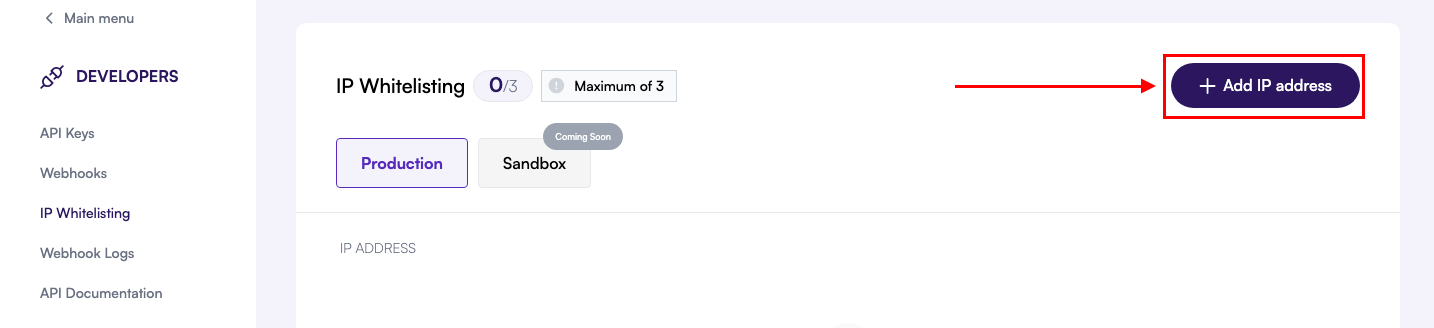 1. Go to **Developer** section in your dashboard.
2. Navigate to **IP Whitelisting**.
3. Add your outbound server IPs or CIDR ranges.
4. Save the configuration.
Calls from non-whitelisted IPs are rejected automatically.
### Step 4: Set up your webhook
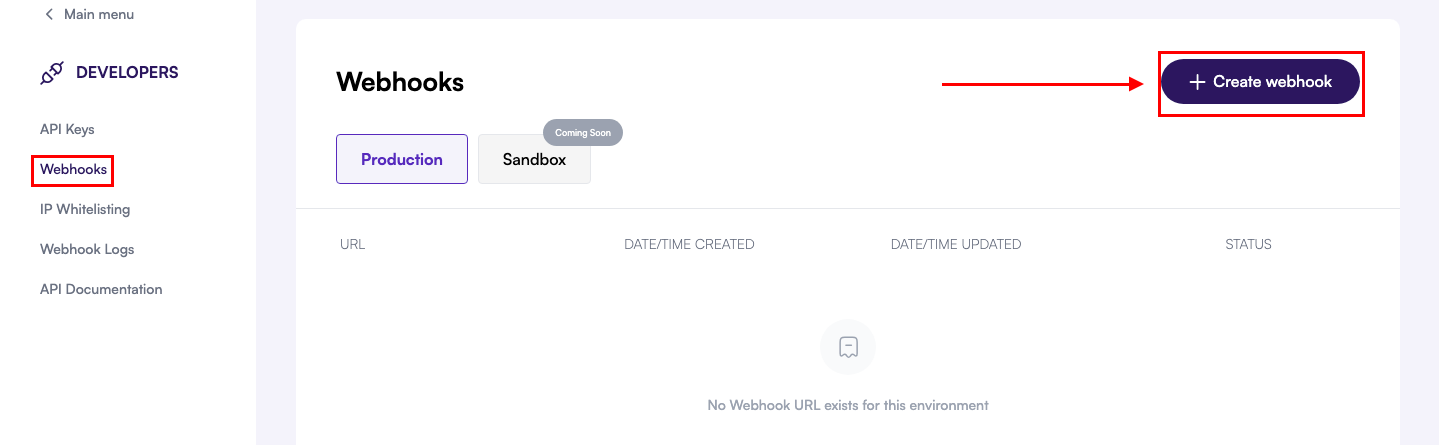
In the **Developers** section of your meCash dashboard, select **Webhooks** from the left-hand menu to review existing endpoints and create new ones.
1. Go to **Developer** section in your dashboard.
2. Navigate to **IP Whitelisting**.
3. Add your outbound server IPs or CIDR ranges.
4. Save the configuration.
Calls from non-whitelisted IPs are rejected automatically.
### Step 4: Set up your webhook
In the **Developers** section of your meCash dashboard, select **Webhooks** from the left-hand menu to review existing endpoints and create new ones.
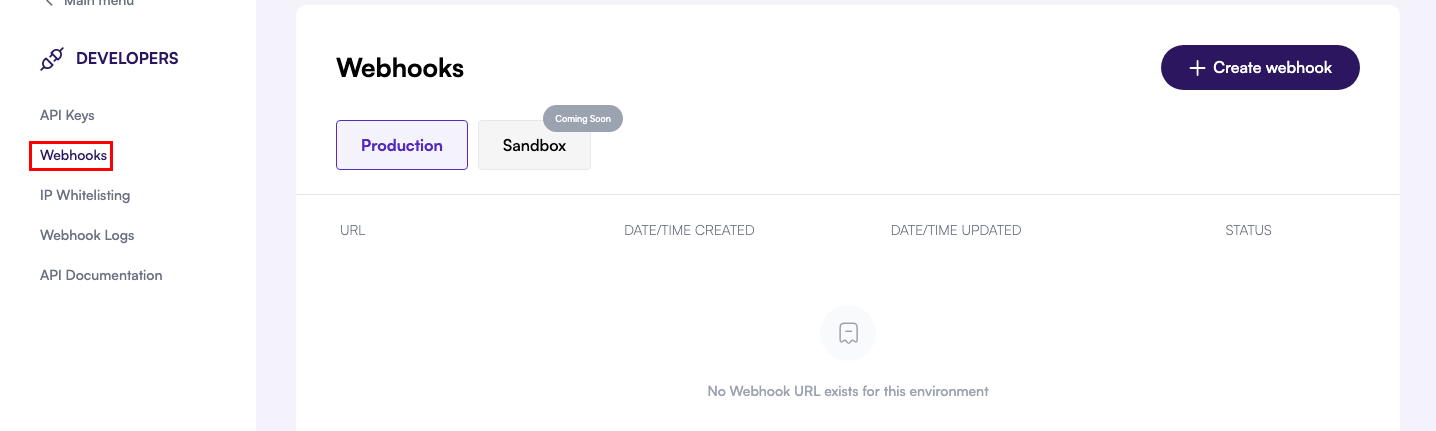 Click the **Create Webhook** button at the top-right corner to launch the configuration modal for a new endpoint.
 * Enter the publicly accessible **URL** where you want to receive webhook events.
* Ensure the endpoint accepts HTTPS POST requests and responds within 10 seconds.
* Return an HTTP **2XX** status code to acknowledge receipt and prevent retries.
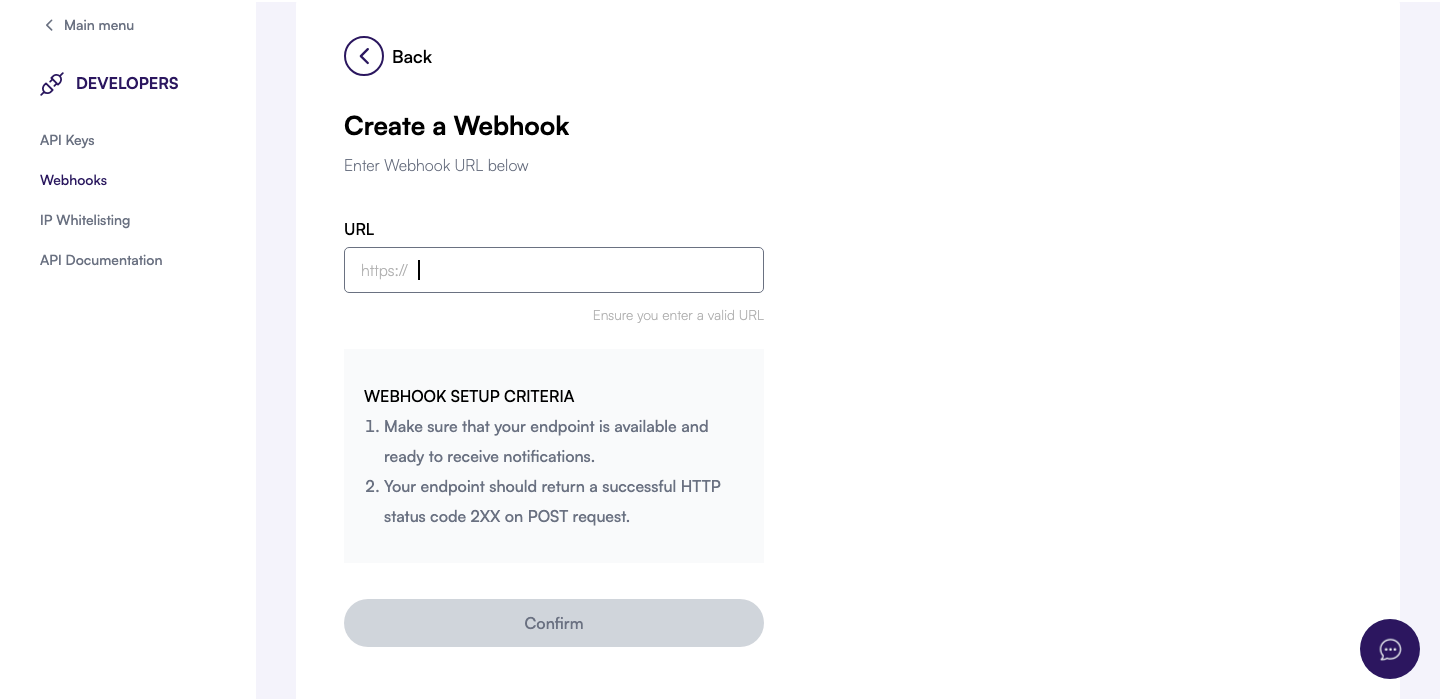 After clicking **Confirm**, your webhook appears in the list with its current status. Use the dashboard to pause, resume, rotate the signing secret, or trigger test events whenever you need a validation payload.
### Step 5: Make Your First API Call
Start by listing wallets in the sandbox to confirm connectivity:
```bash title="List wallets in sandbox" theme={null}
export MCASH_API_KEY="YOUR_SANDBOX_API_KEY"
curl -sS https://sandboxapi.me-cash.com/v1/wallets \
-H "Content-Type: application/json" \
-H "x-api-key: $MCASH_API_KEY"
```
A successful call returns a `200` response with your available wallets:
```json title="Example response" theme={null}
{
"data": [
{
"wallet_id": "WALLET-12345",
"currency": "NGN",
"balance": "0.00"
}
]
}
```
Keep sandbox and production keys separate. Rotate keys periodically via the dashboard.
## Next steps
Now that you have basic setup complete, explore these key features:
Learn how to generate currency conversion quotes.
Send money to bank accounts and mobile wallets.
Create and manage multi-currency wallets.
Set up real-time transaction notifications.
**Need help?** Contact us at [support@me-cash.com](mailto:support@me-cash.com) or join our [Discord community](https://discord.gg/CC5v6h52Wk).
After clicking **Confirm**, your webhook appears in the list with its current status. Use the dashboard to pause, resume, rotate the signing secret, or trigger test events whenever you need a validation payload.
### Step 5: Make Your First API Call
Start by listing wallets in the sandbox to confirm connectivity:
```bash title="List wallets in sandbox" theme={null}
export MCASH_API_KEY="YOUR_SANDBOX_API_KEY"
curl -sS https://sandboxapi.me-cash.com/v1/wallets \
-H "Content-Type: application/json" \
-H "x-api-key: $MCASH_API_KEY"
```
A successful call returns a `200` response with your available wallets:
```json title="Example response" theme={null}
{
"data": [
{
"wallet_id": "WALLET-12345",
"currency": "NGN",
"balance": "0.00"
}
]
}
```
Keep sandbox and production keys separate. Rotate keys periodically via the dashboard.
## Next steps
Now that you have basic setup complete, explore these key features:
Learn how to generate currency conversion quotes.
Send money to bank accounts and mobile wallets.
Create and manage multi-currency wallets.
Set up real-time transaction notifications.
**Need help?** Contact us at [support@me-cash.com](mailto:support@me-cash.com) or join our [Discord community](https://discord.gg/CC5v6h52Wk).