> ## Documentation Index
> Fetch the complete documentation index at: https://developer.me-cash.com/llms.txt
> Use this file to discover all available pages before exploring further.
# Deposit Crypto
> Fund your meCash wallet by depositing crypto assets to your dedicated wallet address
🚧 **The Ramp API is currently under construction.** Endpoints and features described here are subject to change. Do not use in production until this notice is removed.
The **Deposit Crypto** feature allows you to fund your meCash cryptocurrency wallet by sending supported assets from any external wallet or exchange to your dedicated meCash wallet address.
## Overview
When you deposit crypto to your meCash wallet, you receive a unique wallet address specific to your account and the selected network. You can send supported assets (like USDC, USDT, or Ether) from any compatible wallet or exchange to this address, and the funds will be credited to your meCash balance once confirmed on the blockchain.
**Important**: Only send supported assets to the provided address. Sending unsupported assets or using the wrong network will result in **permanent loss of funds**.
***
## How to Deposit Crypto
Log in to your [meCash Business Dashboard](https://business.me-cash.com) and navigate to **Ramp** → **Balances** in the left sidebar.
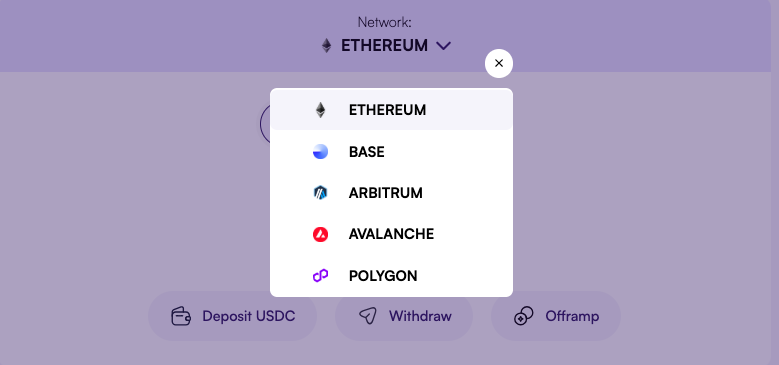
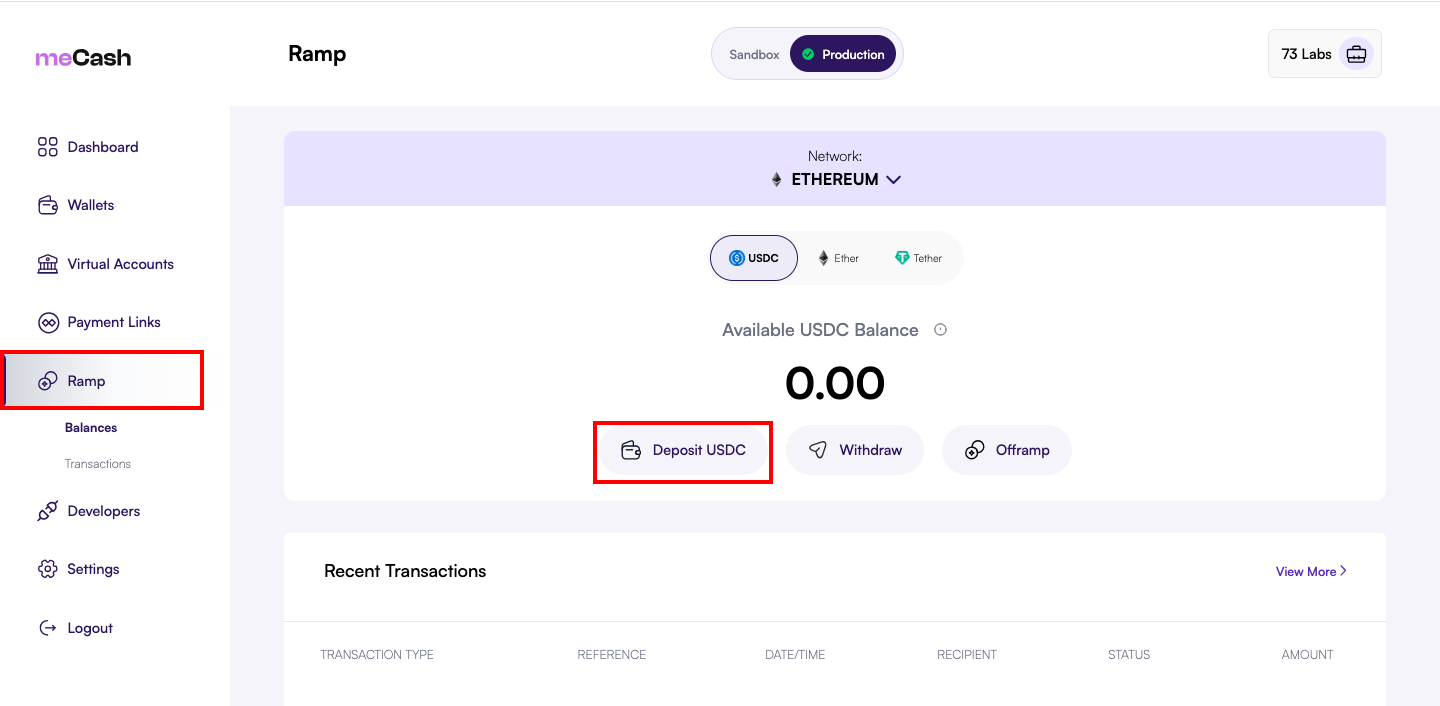 Choose your preferred network (e.g., **Ethereum**) from the network dropdown, then select the asset (e.g., **USDC**, **USDT**, or **Ether**) from the asset tabs.
 Click the **Deposit** button to open the deposit modal for the selected asset.
You'll see:
* A **QR code** that you can scan with your mobile wallet
* Your unique **wallet address** that you can copy and paste
Click the **Deposit** button to open the deposit modal for the selected asset.
You'll see:
* A **QR code** that you can scan with your mobile wallet
* Your unique **wallet address** that you can copy and paste
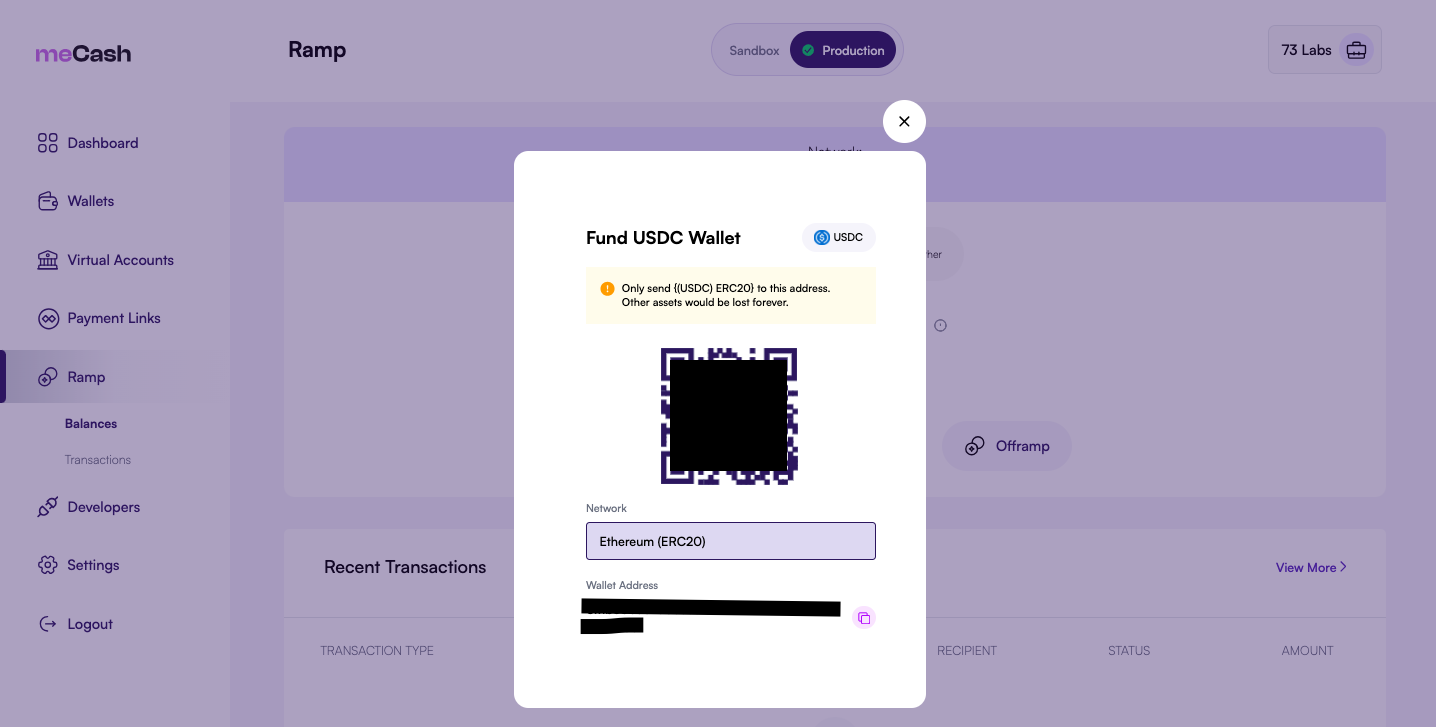 From your external wallet or exchange, send the selected asset to the displayed address. Ensure you select the correct network (e.g., Ethereum ERC20).
Your deposit will appear in your balance once confirmed on the blockchain. This typically takes 2-5 minutes depending on network congestion.
***
## Deposit Information
### Wallet Address Format
Your meCash wallet address follows the standard Ethereum address format:
```
0x1b688c82a86cecfcc072544ecd288a93b66da2b6
```
Your wallet address is unique to your account and remains the same for all deposits on the selected network.
### Supported Assets & Networks
| **Asset** | **Network** | **Token Standard** | **Confirmation Time** |
| --------- | ----------- | ------------------ | --------------------- |
| USDC | Ethereum | ERC20 | \~2-5 minutes |
| USDC | Polygon | MATIC/ERC20 | \~1-2 minutes |
| USDT | Ethereum | ERC20 | \~2-5 minutes |
| USDT | Polygon | MATIC/ERC20 | \~1-2 minutes |
| Ether | Ethereum | Native/ERC20 | \~2-5 minutes |
***
## Deposit Modal Details
When you click **Deposit**, a modal appears with the following information:
| **Element** | **Description** |
| ------------------- | -------------------------------------------------------------------- |
| **QR Code** | Scan with any compatible wallet app to auto-fill the deposit address |
| **Network** | The blockchain network for the deposit (e.g., Ethereum ERC20) |
| **Wallet Address** | Your unique deposit address - click the copy icon to copy |
| **Warning Message** | Reminder to only send the correct asset on the correct network |
***
## Before You Deposit
Ensure you're sending your asset on the same network displayed in the deposit modal. For example, if the modal shows "Ethereum (ERC20)", send via the Ethereum network.
Always verify the wallet address before sending. Copy the address directly from the meCash dashboard rather than typing it manually.
When sending from an external wallet, ensure you have enough ETH (or native network token) to cover the gas fees for the transaction.
There is no minimum deposit amount, but very small deposits may not be cost-effective due to gas fees.
***
## Tracking Your Deposit
### In the Dashboard
After initiating a deposit:
2. Check the **Recent Transactions** section
3. Your deposit will appear with status `PENDING` until confirmed
4. Once confirmed, the status changes to `COMPLETED` and your balance updates
### Transaction Details
Each deposit transaction shows:
| **Field** | **Description** |
| ---------------- | ------------------------------ |
| Transaction Type | `DEPOSIT` |
| Reference | Unique transaction reference |
| Date/Time | When the deposit was received |
| Status | `PENDING` or `COMPLETED` |
| Amount | The amount of crypto deposited |
***
## Common Issues
**Possible causes:**
* Transaction is still pending on the blockchain
* Wrong network used (e.g., sent on Polygon instead of Ethereum)
* Insufficient gas on the sending wallet
**Solution:** Check the transaction hash on a block explorer like [Etherscan](https://etherscan.io) or [Polygonscan](https://polygonscan.com) to verify the transaction status.
If you sent an unsupported token to your deposit address, please contact [support@me-cash.com](mailto:support@me-cash.com) immediately. Recovery may not always be possible.
If you sent crypto on an unsupported network, the funds may be lost. Contact support with your transaction details for assistance.
***
## Security Best Practices
Always copy the address from meCash - never type it manually
Send a small test amount before making large deposits
Confirm you're using the correct blockchain network
Access meCash through bookmarks to avoid phishing sites
***
## After Depositing
Once your crypto is deposited, you can:
* **[Withdraw](/ramp-docs/withdraw-crypto)**: Send assets to any external wallet
* **[Offramp](/ramp-docs/offramp)**: Convert crypto to fiat currency (NGN, USD, etc.)
* **Hold**: Keep your balance in your meCash wallet for future use
***
## Need Help?
If you encounter any issues with your deposit:
* **Email**: [support@me-cash.com](mailto:support@me-cash.com)
* **Discord**: Join our [community](https://discord.gg/CC5v6h52Wk)
Please include your wallet address and transaction hash when contacting support.
From your external wallet or exchange, send the selected asset to the displayed address. Ensure you select the correct network (e.g., Ethereum ERC20).
Your deposit will appear in your balance once confirmed on the blockchain. This typically takes 2-5 minutes depending on network congestion.
***
## Deposit Information
### Wallet Address Format
Your meCash wallet address follows the standard Ethereum address format:
```
0x1b688c82a86cecfcc072544ecd288a93b66da2b6
```
Your wallet address is unique to your account and remains the same for all deposits on the selected network.
### Supported Assets & Networks
| **Asset** | **Network** | **Token Standard** | **Confirmation Time** |
| --------- | ----------- | ------------------ | --------------------- |
| USDC | Ethereum | ERC20 | \~2-5 minutes |
| USDC | Polygon | MATIC/ERC20 | \~1-2 minutes |
| USDT | Ethereum | ERC20 | \~2-5 minutes |
| USDT | Polygon | MATIC/ERC20 | \~1-2 minutes |
| Ether | Ethereum | Native/ERC20 | \~2-5 minutes |
***
## Deposit Modal Details
When you click **Deposit**, a modal appears with the following information:
| **Element** | **Description** |
| ------------------- | -------------------------------------------------------------------- |
| **QR Code** | Scan with any compatible wallet app to auto-fill the deposit address |
| **Network** | The blockchain network for the deposit (e.g., Ethereum ERC20) |
| **Wallet Address** | Your unique deposit address - click the copy icon to copy |
| **Warning Message** | Reminder to only send the correct asset on the correct network |
***
## Before You Deposit
Ensure you're sending your asset on the same network displayed in the deposit modal. For example, if the modal shows "Ethereum (ERC20)", send via the Ethereum network.
Always verify the wallet address before sending. Copy the address directly from the meCash dashboard rather than typing it manually.
When sending from an external wallet, ensure you have enough ETH (or native network token) to cover the gas fees for the transaction.
There is no minimum deposit amount, but very small deposits may not be cost-effective due to gas fees.
***
## Tracking Your Deposit
### In the Dashboard
After initiating a deposit:
2. Check the **Recent Transactions** section
3. Your deposit will appear with status `PENDING` until confirmed
4. Once confirmed, the status changes to `COMPLETED` and your balance updates
### Transaction Details
Each deposit transaction shows:
| **Field** | **Description** |
| ---------------- | ------------------------------ |
| Transaction Type | `DEPOSIT` |
| Reference | Unique transaction reference |
| Date/Time | When the deposit was received |
| Status | `PENDING` or `COMPLETED` |
| Amount | The amount of crypto deposited |
***
## Common Issues
**Possible causes:**
* Transaction is still pending on the blockchain
* Wrong network used (e.g., sent on Polygon instead of Ethereum)
* Insufficient gas on the sending wallet
**Solution:** Check the transaction hash on a block explorer like [Etherscan](https://etherscan.io) or [Polygonscan](https://polygonscan.com) to verify the transaction status.
If you sent an unsupported token to your deposit address, please contact [support@me-cash.com](mailto:support@me-cash.com) immediately. Recovery may not always be possible.
If you sent crypto on an unsupported network, the funds may be lost. Contact support with your transaction details for assistance.
***
## Security Best Practices
Always copy the address from meCash - never type it manually
Send a small test amount before making large deposits
Confirm you're using the correct blockchain network
Access meCash through bookmarks to avoid phishing sites
***
## After Depositing
Once your crypto is deposited, you can:
* **[Withdraw](/ramp-docs/withdraw-crypto)**: Send assets to any external wallet
* **[Offramp](/ramp-docs/offramp)**: Convert crypto to fiat currency (NGN, USD, etc.)
* **Hold**: Keep your balance in your meCash wallet for future use
***
## Need Help?
If you encounter any issues with your deposit:
* **Email**: [support@me-cash.com](mailto:support@me-cash.com)
* **Discord**: Join our [community](https://discord.gg/CC5v6h52Wk)
Please include your wallet address and transaction hash when contacting support.