> ## Documentation Index
> Fetch the complete documentation index at: https://developer.me-cash.com/llms.txt
> Use this file to discover all available pages before exploring further.
# Team Management
> Learn how to add team members, assign roles, and manage permissions on your meCash merchant dashboard.
Collaborating with your team on meCash is simple and secure. The **Team Management** feature allows you to invite colleagues to your merchant workspace, enabling them to help manage payouts, monitor transactions, and handle collections.
Only users with **Super Admin** or **Admin** privileges can add or manage team members.
### Adding a new team member
Follow these steps to invite a new member to your meCash dashboard.
Log in to your [meCash Dashboard](https://business.me-cash.com) and navigate to **Settings** in the bottom left sidebar. Click on the **Team Members** tab to see a list of your current team.
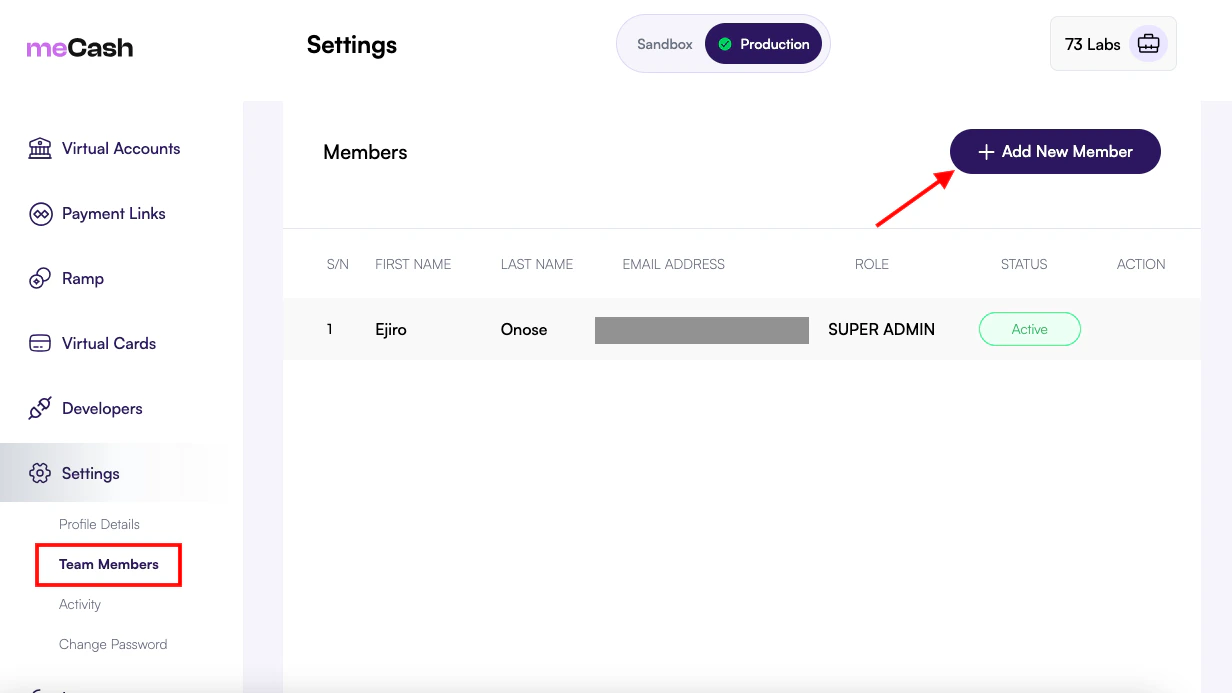 Click the **+ Add New Member** button located at the top right of the members list. You will be presented with a form to enter the new member's details.
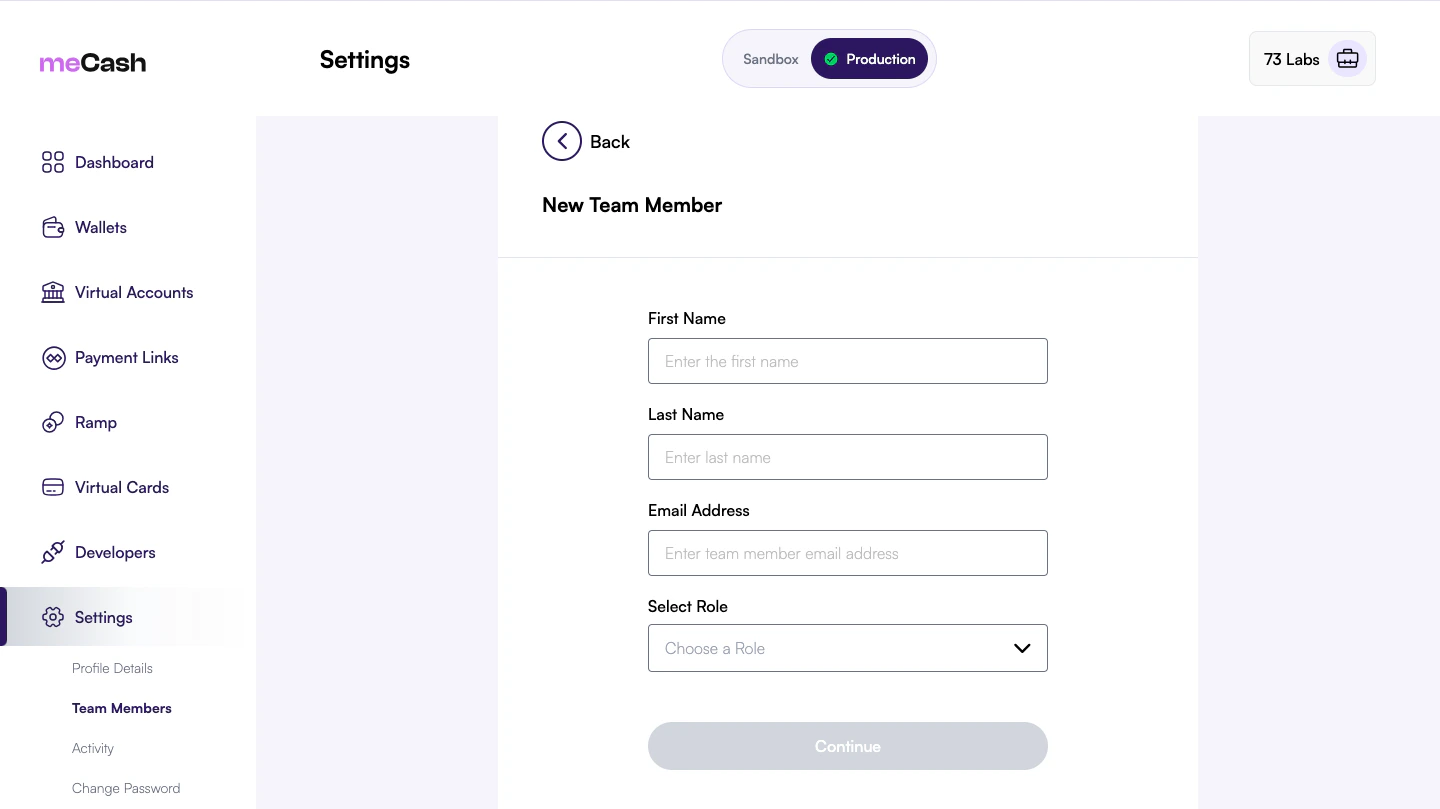
**Provide the following information:**
* **First Name & Last Name:** The legal name of your colleague.
* **Email Address:** The business email where they will receive their invitation and relevant notifications.
* **Select Role:** Choose the appropriate level of access (e.g., Support, Admin, or Super Admin).
Click the **+ Add New Member** button located at the top right of the members list. You will be presented with a form to enter the new member's details.
**Provide the following information:**
* **First Name & Last Name:** The legal name of your colleague.
* **Email Address:** The business email where they will receive their invitation and relevant notifications.
* **Select Role:** Choose the appropriate level of access (e.g., Support, Admin, or Super Admin).
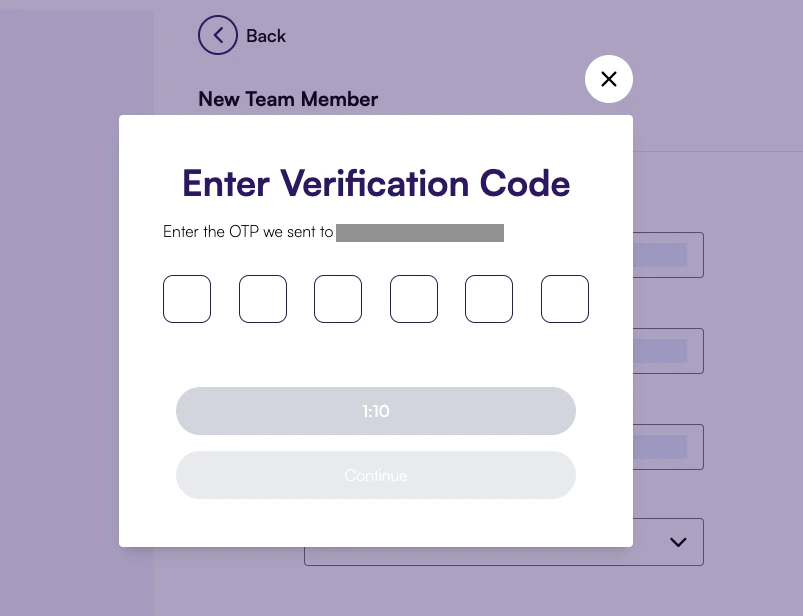
 To ensure security, meCash requires a verification code (OTP) to finalize the invitation. Check your registered administrator email for the code and enter it into the verification modal.
 Once verified, the new team member will receive an email invitation to set up their account and join your workspace.
### Understanding Roles
When adding a member, you can select from various roles depending on the level of access required:
| Role | Permissions |
| :-------------- | :---------------------------------------------------------------------------------------------- |
| **Super Admin** | Full access to all features, including billing, API keys, and team management. |
| **Admin** | Managing payouts, collections, and viewing reports, but restricted from some security settings. |
| **Support** | View-only access to transactions and customer support tools for reconciliation. |
Always use business email addresses and ensure team members enable 2FA on their accounts.
Encountering issues with invitations? Reach out to our support team for assistance.
Once verified, the new team member will receive an email invitation to set up their account and join your workspace.
### Understanding Roles
When adding a member, you can select from various roles depending on the level of access required:
| Role | Permissions |
| :-------------- | :---------------------------------------------------------------------------------------------- |
| **Super Admin** | Full access to all features, including billing, API keys, and team management. |
| **Admin** | Managing payouts, collections, and viewing reports, but restricted from some security settings. |
| **Support** | View-only access to transactions and customer support tools for reconciliation. |
Always use business email addresses and ensure team members enable 2FA on their accounts.
Encountering issues with invitations? Reach out to our support team for assistance.