

Adding a new team member
Follow these steps to invite a new member to your meCash dashboard.1
Navigate to Team Members
Log in to your meCash Dashboard and navigate to Settings in the bottom left sidebar. Click on the Team Members tab to see a list of your current team.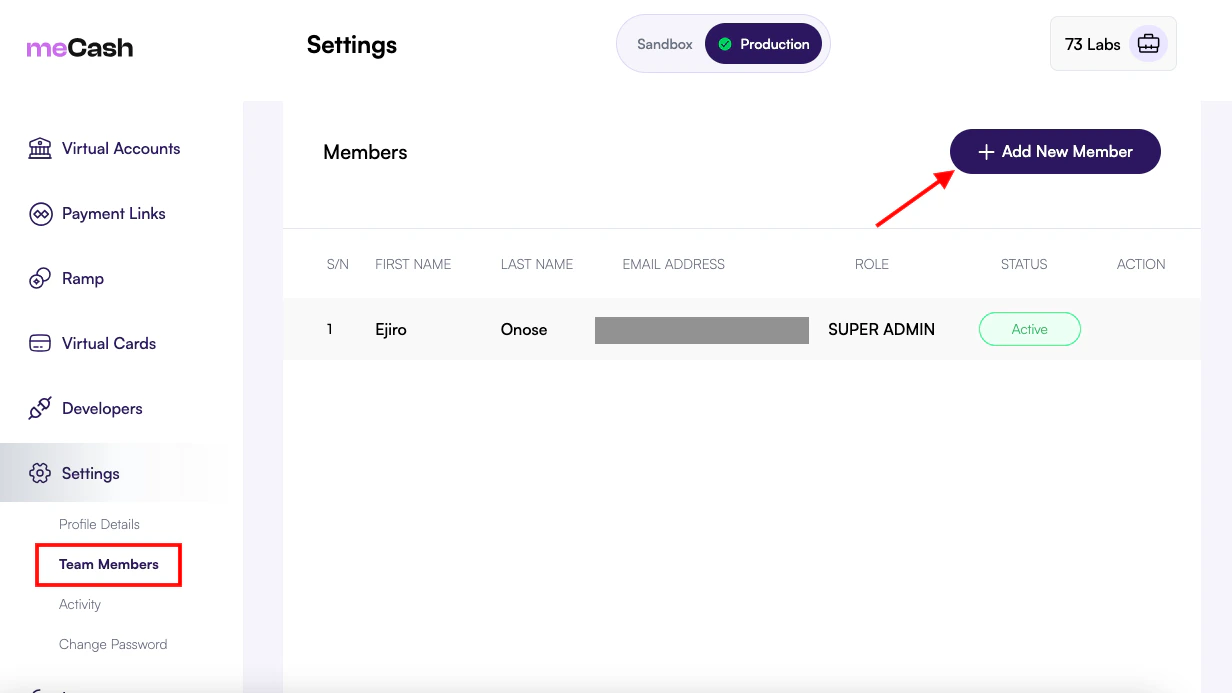
2
Invite a New Member
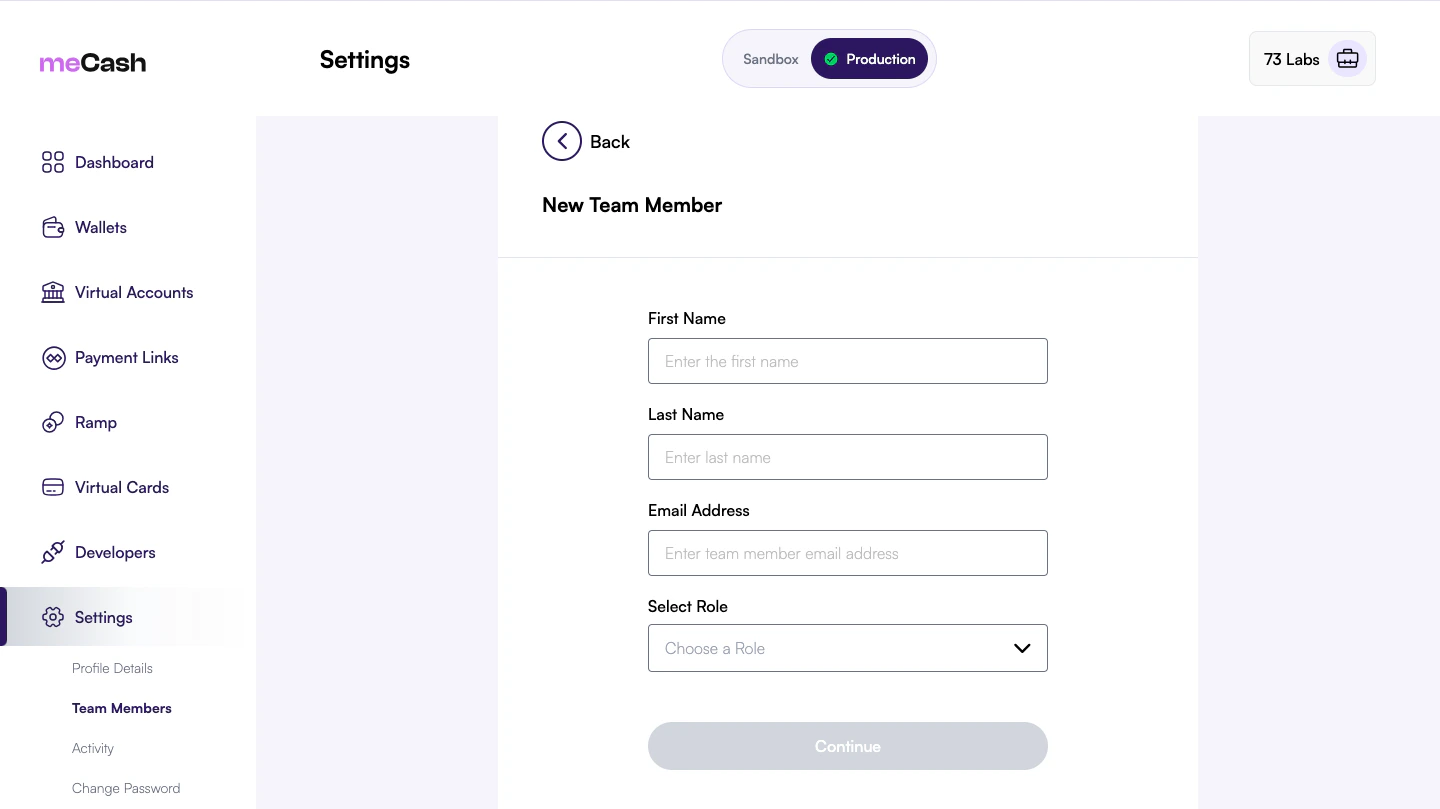
Click the + Add New Member button located at the top right of the members list. You will be presented with a form to enter the new member’s details.Provide the following information:
- First Name & Last Name: The legal name of your colleague.
- Email Address: The business email where they will receive their invitation and relevant notifications.
-
Select Role: Choose the appropriate level of access (e.g., Support, Admin, or Super Admin).
3
OTP Verification
To ensure security, meCash requires a verification code (OTP) to finalize the invitation. Check your registered administrator email for the code and enter it into the verification modal.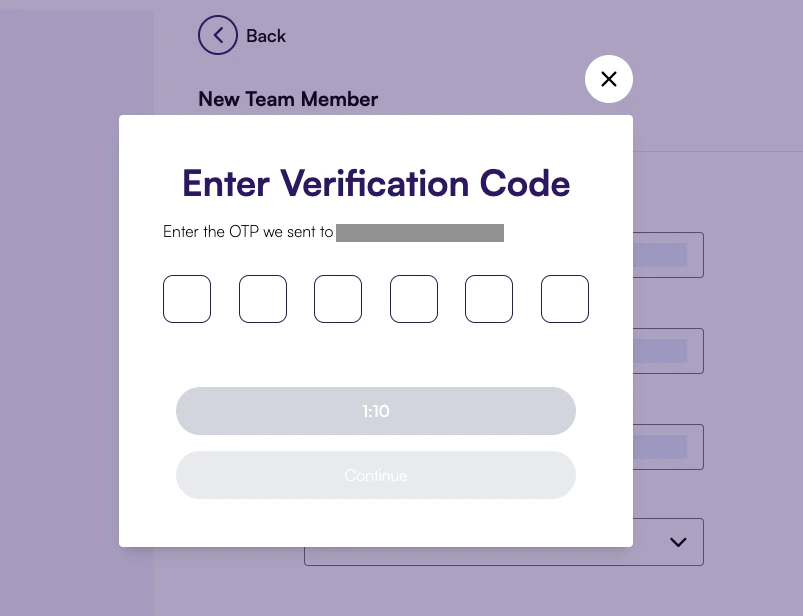
Understanding Roles
When adding a member, you can select from various roles depending on the level of access required:Security Best Practices
Always use business email addresses and ensure team members enable 2FA on their accounts.
Need Help?
Encountering issues with invitations? Reach out to our support team for assistance.